Data Tracking (/admin/data-tracking) lists one row per work day on a project. Operators review concrete used vs yield, daily money totals, and profit; they start a new measurement or invoice from the same screen after choosing a project in the toolbar.
Permissions: FunctionId DATA_TRACKING (10), menu Project Management → Data Tracking (function.url = data_tracking). View opens the list. Add shows New Measurement. Delete shows row ⋮ Delete and bulk delete. New Invoice uses FunctionId INVOICE (11) Add, not Data Tracking Add.
Screen layout
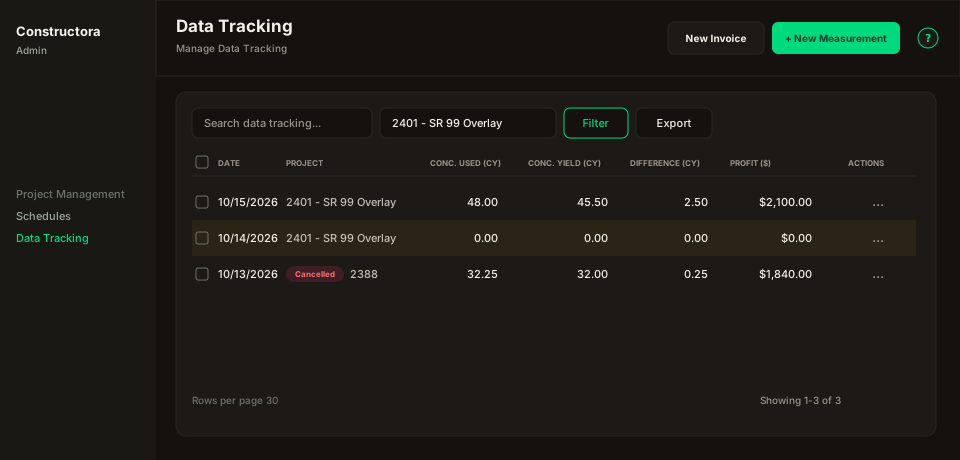
Figure: FoodHub list — title Data Tracking, subtitle Manage Data Tracking, New Invoice and New Measurement in the header, ? help; data card with Search data tracking…, project combobox, Filter, Export, sortable Date and Project, numeric columns, pending row tint, row ⋮, checkboxes, and pagination (default 30).
| Region | What you see |
|---|---|
| Page toolbar | Title Data Tracking, subtitle Manage Data Tracking, New Invoice (Invoice Add), New Measurement (Data Tracking Add), and the ? icon (this article). |
| Data card | Search, Project combobox (always visible), Filter, Export, columns, pending tint, row checkboxes (Delete), bulk bar, mobile Sort by, pagination. |
| Day wizard | Surface B on the list URL (?create=1&projectId= / ?edit= / ?view=) — pills General, Items, Labor, Materials, Conc Vendors, Subcontractor, and Attachments. |
Default sort: Date descending. Page size default is 30.
List columns
| Column | Meaning |
|---|---|
| Date | Work day (m/d/Y). Sortable. |
| Project | projectNumber - description. Sortable. A cancelled day shows a red Cancelled badge above the name (tooltip: reason, who is responsible, notes). If the day is billed to the customer the badge reads Cancelled · Charged. |
| Conc. Used (CY) | Sum of concrete vendor quantities for that day. |
| Conc. Yield (CY) | Sum of item yield: empty/none → 0; equation → evaluated formula; otherwise item quantity. |
| Difference (CY) | Conc. Used minus Conc. Yield, rounded to 2 decimals. |
| Conc. Total ($) | Concrete cost for the day. |
| Labor Total ($) | Labor hours plus people × overhead. |
| Daily Total ($) | Item daily amount minus subcontract. |
| Profit ($) | Daily total minus (concrete + labor + materials + abnormal loss). |
Quantities and money use the US admin format (thousands ,, decimal ., two places).
A Pending day (pending = 1) uses an amber row tint. That tint is not the same as a checkbox selection. Saving a day sets the flag: empty items (unless Prepwork) or any item quantity of 0. The HTTP job GET /definir-pending-datatracking (Scheduled jobs handler pending-data-tracking) rescans every day so older rows stay in sync.
A Cancelled day (cancelled = 1) keeps its numeric columns; the badge on Project is how operators see it in the list. Open the wizard to change reason, notes, charge, or re-schedule date.
Filters and search
- Project — toolbar combobox (top section). Required before New Measurement or New Invoice. Empty click shows Select the project in the top section.
- Search — project number, name, description, crew lead, measured by, station number, notes, and other materials (three or more characters).
- Filter popover:
- Status — all, Pending, or Completed.
- From / To date range.
- Show only PUNCH List? — days with at least one item punch quantity greater than 0.
- Export — Copy, Excel, and CSV for the current page, same visible columns.
Apply / Reset live in the Filter popover. Changing the project combobox reloads immediately.
New Measurement and New Invoice
New Measurement opens the day wizard titled New Data Tracking: plus the selected project. Use the pills General → Attachments (seven steps). The Day form section below includes a figure of the wizard.
Saving a second measurement for the same project and date shows Duplicate Measurement. Yes still saves; the API does not unique-block that pair.
New Invoice also requires the toolbar project. It opens /admin/invoices?create=1&projectId= with the next calendar-month period already filled. See Invoices.
Wizard — General
- Date (required), Inspector (
+quick-add), Station Number(s), Measured By (Field Measurements, then Employees). - Total People — read-only; count of labor rows.
- Overhead Price, Color Used/Price, Notes, Prepwork.
- Cancelled — when on, Cancel reason and Cancellation details are required (origin copy: Select the reason why the work was cancelled. / Write the cancellation details (what happened that day).). Optional Charge the customer and Re-schedule to (
Invalid re-schedule date.if the date is not valid). Checking Charge the customer auto-adds 1 MOBILIZATION on Items when the project has that catalog item (notes start withCancelled:). Unchecking charge or cancelled removes only that auto line. A re-schedule date copies the project's Schedule rows to the new day (or creates a basic one) marked(Re-scheduled from m/d/Y); changing the date deletes the previous copy.
Wizard — Items
Table columns: Code, Item, Unit, Yield Calculation, Quantity, Yield Calculation Value, Price, Total $.
- Next to the item name: green R (retainage), red B (catalog bond), blue B (bonded), and a + for change-order / add-on history.
- Quantity can show Partial or PUNCH List badges plus a quantity-history +; Price shows a price-history + when
project_item_historyhas rows. Those + icons open Change Order History (same log Invoices and Payments reuse). - New opens New Pay Item Measured (work date in the title): % of Contract Completed under the pay item, narrow Quantity, switches for PUNCH and Partial.
- + next to Pay Item Measured adds a project item (
modal-item-project).
Wizard — Labor
- Owner vs Subcontractor, hours, role, Crew Lead, color picker (default
#34BFA3). A color swatch appears next to the name in the table. - + next to Employee → New Employee: Name, Hourly Rate, Position, color picker (default
#17C653). - + next to a subcontractor employee → Name, Hourly Rate, Position (no color picker).
Wizard — Materials
- Materials table: material, vendor, unit, quantity, price.
- Abnormal Loss lives on this step (not a separate pill): table with Amount and Note; Abnormal Loss button opens Amount (
$, required), rich-text Note, and nested Attachments. - Nested Add Attachment uses the same form as step 7 (Name, dropzone, Tags, Note). Row actions: View (eye), Edit, Delete.
Wizard — Conc Vendors
Columns: Conc Vendor, Total Conc Used, Conc Price, Total $.
| Legend | Meaning |
|---|---|
| Peach swatch + up-right arrow | Total over the amount quoted for that vendor — tooltip: Over the quoted amount: total used $X vs quoted $Y (over by $Z). |
| Yellow swatch + warning triangle | Vendor not assigned to the project — tooltip: This vendor is not one of the concrete vendors assigned to the project. |
When the project has assigned concrete vendors, the toolbar shows Project vendors: Name (N classes, $quote).
Wizard — Subcontractor
Subcontractor, pay item, quantity, price, notes. Saving can add the pay item to Items if it was missing.
Wizard — Attachments (step 7)
Table: Name, File. New opens New Attachment with Name, dropzone (Drop files here or click to upload.), Tags (select or create), formatted Note. Duplicate names: The attachment has already been added. Row actions: View, Edit, Delete.
Collection modals — Add vs Update
| Action | Items, Labor, Materials, Abnormal Loss, Conc Vendors, Subcontractor | Nested catalog (+ employee, + project item, + inspector, + vendor) | Attachments (day or Abnormal Loss) |
|---|---|---|---|
| Add | Modal stays open; form resets for another line. Labor Add keeps the selected Crew Lead. | Modal closes after save. | Modal closes after save. |
| Update | Modal closes. | Modal closes. | Modal closes. |
Day form
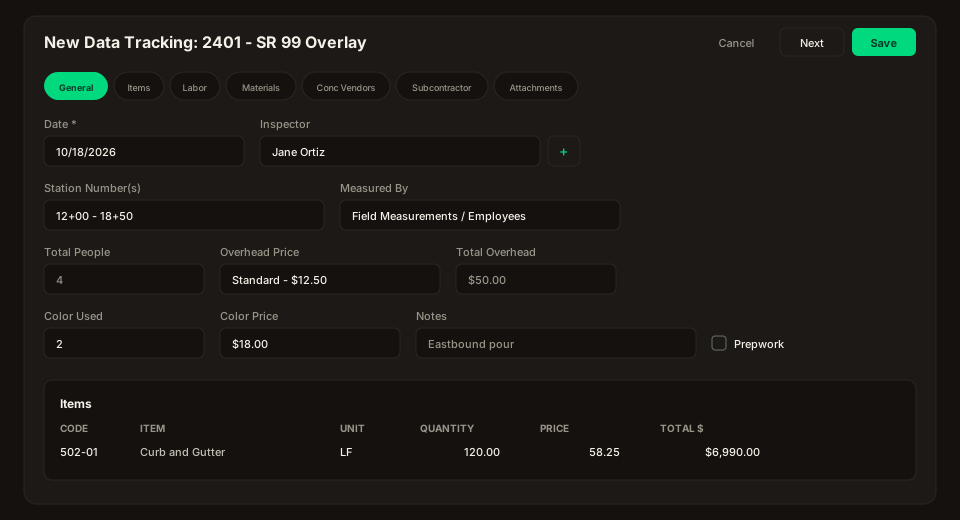
Figure: Surface B wizard — title New Data Tracking: plus the project, seven pills General, Items, Labor, Materials, Conc Vendors, Subcontractor, Attachments, Date/Inspector/Station/Measured By, overhead and color, Prepwork, and collection tables.
View (?view=) is read-only and offers Switch to Edit when the operator has Edit. Quantity on edit accepts + / - / = relative to the current line. Price is always the server price in force on that date.
Row actions and delete
Row ⋮: View and Edit open the day wizard; Delete removes the header (and its owned children) when permitted.
Bulk delete uses the same permission. Success toast: The operation was successful.