Schedules (/admin/schedule) is the pour calendar. The page title is Schedules and the breadcrumb is Manage Schedules. The sidebar label is Schedule. The page opens on the calendar; Hide Calendar switches to the table.
Permissions: FunctionId SCHEDULE (22), menu Admin → Schedule (function.url = schedule). View opens the page. Add controls New and Clone. Edit controls the row edit. Delete controls checkboxes, bulk delete, and row delete.
Screen layout
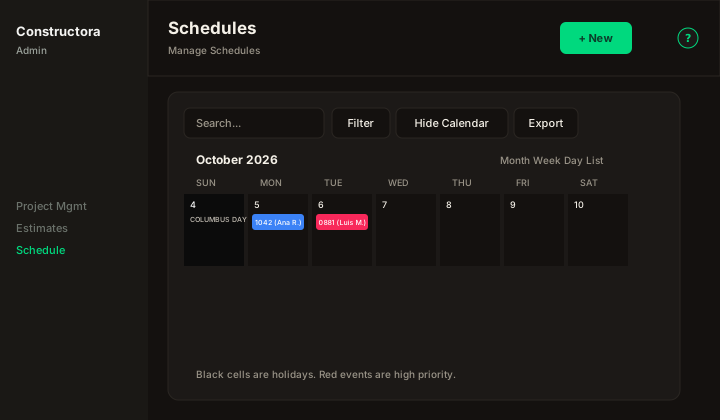
Figure: default calendar — New in the page header, Hide Calendar beside Filter and Export, and a high-priority pour in red.
| Region | What you see |
|---|---|
| Page toolbar | Title Schedules, subtitle Manage Schedules, New (Add), and the ? icon (this article). |
| Card toolbar | Search, Filter, Hide Calendar / Show Calendar, and Export. Same placement as Estimates. |
| Calendar | Month, week, day, and list. Today jumps back to the current month. Holidays are black day cells with the description in uppercase. A high-priority pour is red; the others are blue. On a phone the month is a compact grid (day number + color dots); tap a day to read the events in the agenda below. |
| List | Visible after Hide Calendar. Columns: Project, Conc. Vendor, Description, Location, Date, Hour, Quantity, Notes, Actions. |
| Filter | Project, Concrete Vendor, and a date range. On open, From and To are the first and last day of the current month. Reset clears them. |
| Modal | New Schedules: or Update Schedule: on the list URL. Cancel and Save sit in the header. |
Default list sort: Date descending. Page size starts at 30.
List and calendar
- Search matches notes, project number, name, description, schedule description, location, or the project contact when the term is empty or at least 3 characters.
- Quantity uses two decimals (
1,250.00). - Hour is stored as 24-hour
HH:mm. The form labels use 12-hour AM/PM. - The date filter starts on the current month, the same range the list and the calendar use. Reset clears From and To. With both dates empty, the calendar still shows the current month; the list is not clamped.
- The event title prefers employees linked to the schedule. Otherwise it uses data-tracking labor whose role is exactly Lead. Extra people appear as
+N.
Create, edit, clone
New creates one row per pour line and per day from Start Date through Stop Date, including Sundays. Each pour line has Class, Hour, Quantity, and Will Call (origin accordion). Add hour appends another line; Will Call can differ per hour. Update edits a single Day and one pour line. Project, dates, Work Description, and Quantity are required.
Changing the project loads that project's concrete vendors, contacts, and the notes and contact from the latest schedule. Next to Contact Project, + opens Add Project Contact: pick a company contact (required), optional Role and Notes, then Add. A second + creates a company contact first. Duplicate links read This contact is already added to the project. Location searches US addresses and stores latitude and longitude. High Priority is Yes / No.
Clone copies the selected rows across a new date range. When more than one schedule is selected, only days that match each source weekday are copied. A single clone copies every day in the range. Success reads The operation was successful.
Delete removes the schedule and its employee and vendor-contact links. A missing row reads The requested record does not exist.
Export copies or downloads the current page (Copy / Excel / CSV). Export Report (same menu) builds the weekly crew workbook (schedule.xlsx): one Monday–Sunday grid per week, CREW LEADS, PROJECT / WORK / CONCRETE / days / NOTES / CONTACTS, holidays in black, high-priority pours in red. A full-screen progress overlay shows Generating Excel… then Preparing download… — the Export button itself does not switch to Exporting…. It uses the same Search / Project / Vendor / date filters as the page. Empty From/To uses the current week.